| 일 | 월 | 화 | 수 | 목 | 금 | 토 |
|---|---|---|---|---|---|---|
| 1 | 2 | 3 | 4 | 5 | 6 | 7 |
| 8 | 9 | 10 | 11 | 12 | 13 | 14 |
| 15 | 16 | 17 | 18 | 19 | 20 | 21 |
| 22 | 23 | 24 | 25 | 26 | 27 | 28 |
- openocd
- 갈릴레오
- 동부로봇
- fdisk
- HerkuleX
- 허큘렉스
- Boyue
- 마스보드
- galileo
- Z435
- ubuntu
- lg smart recovery
- ft2232
- Python
- ares note
- Cortex-M3
- usb부팅
- CMSIS
- U-boot
- STM32F10x
- emIDE
- 우분투
- Galileo Gen2
- QT
- ICbanq
- smartrobot board
- DRS-0101
- Marsboard
- 알쓸물치
- pyside6
- Today
- Total
Life Seed
First QtWidgets Application 본문
https://doc.qt.io/qtforpython-6/index.html 사이트의 Tutorial에 대한 내용을 정리한다.
Tutorials 를 클릭하여 확인할 수 있다.
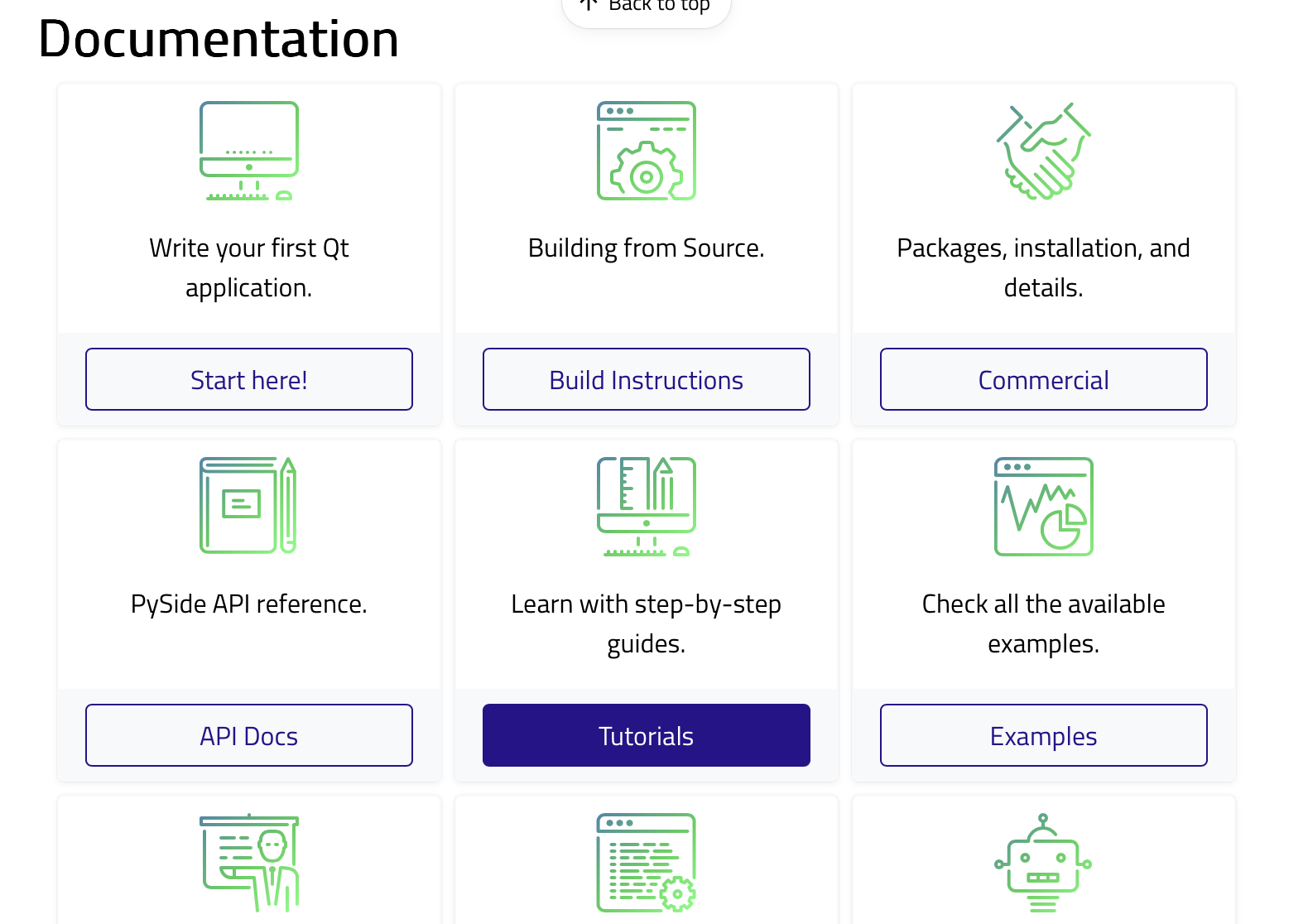
출처 :: Qt for Python Tutorials
https://doc.qt.io/qtforpython-6/tutorials/index.html
Tutorials - Qt for Python
Basic ui files Using .ui files from Designer or QtCreator with QUiLoader and pyside6-uic
doc.qt.io
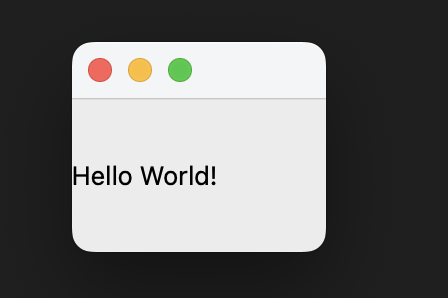
오늘의 첫번째 예제는 QtWidgets 중 QLabel에 대한 사용예제이다.
너무 심플한 예제라 설명할 것은 따로 없을 듯하다.
일단 코드를 살펴보자.
import sys
from PySide6.QtWidgets import QApplication, QLabel

app = QApplication(sys.argv)

# Create a simple label widget
label = QLabel("Hello World!")
label.show()
app.exec()
PySide6을 사용하는 위젯 애플리케이션의 경우 항상 PySide6에서 적절한 클래스를 가져오는 것으로 시작해야 합니다.
QtWidgets 모듈 가져오기 후 QApplication 인스턴스를 생성합니다.
Qt는 명령줄에서 인수를 받을 수 있으므로 QApplication 객체에 인수를 전달할 수 있습니다.
app = QApplication(sys.argv)
일반적으로 인수를 전달할 필요가 없으므로 그대로 두거나 다음 접근 방식을 사용할 수 있습니다.
app = QApplication([])
응용 프로그램 개체를 생성한 후 QLabel 개체를 생성했습니다.
마지막으로 app.exec()을 호출하여 Qt 메인 루프에 들어가고 Qt 코드 실행을 시작합니다.
QLabel은 텍스트와 이미지를 표시할 수 있는 위젯입니다.
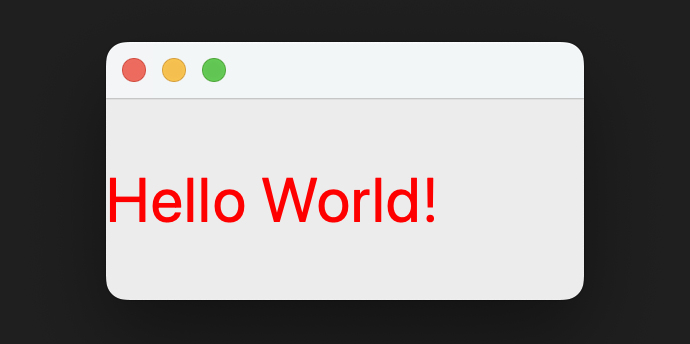
Text를 html 스타일로 꾸미일 수 있는 예제
import sys
from PySide6.QtWidgets import QApplication, QLabel

app = QApplication([])  # This works too, but sys.argv is more common

# This HTML approach will be valid too!
label = QLabel("<font color=red size=40>Hello World!</font>")

label.show()
app.exec()